

On a phone
On a phone (any screen narrower than 640 pixels), the editor shows one thing at a time: either the page or a panel. Tabs at the bottom switch between them.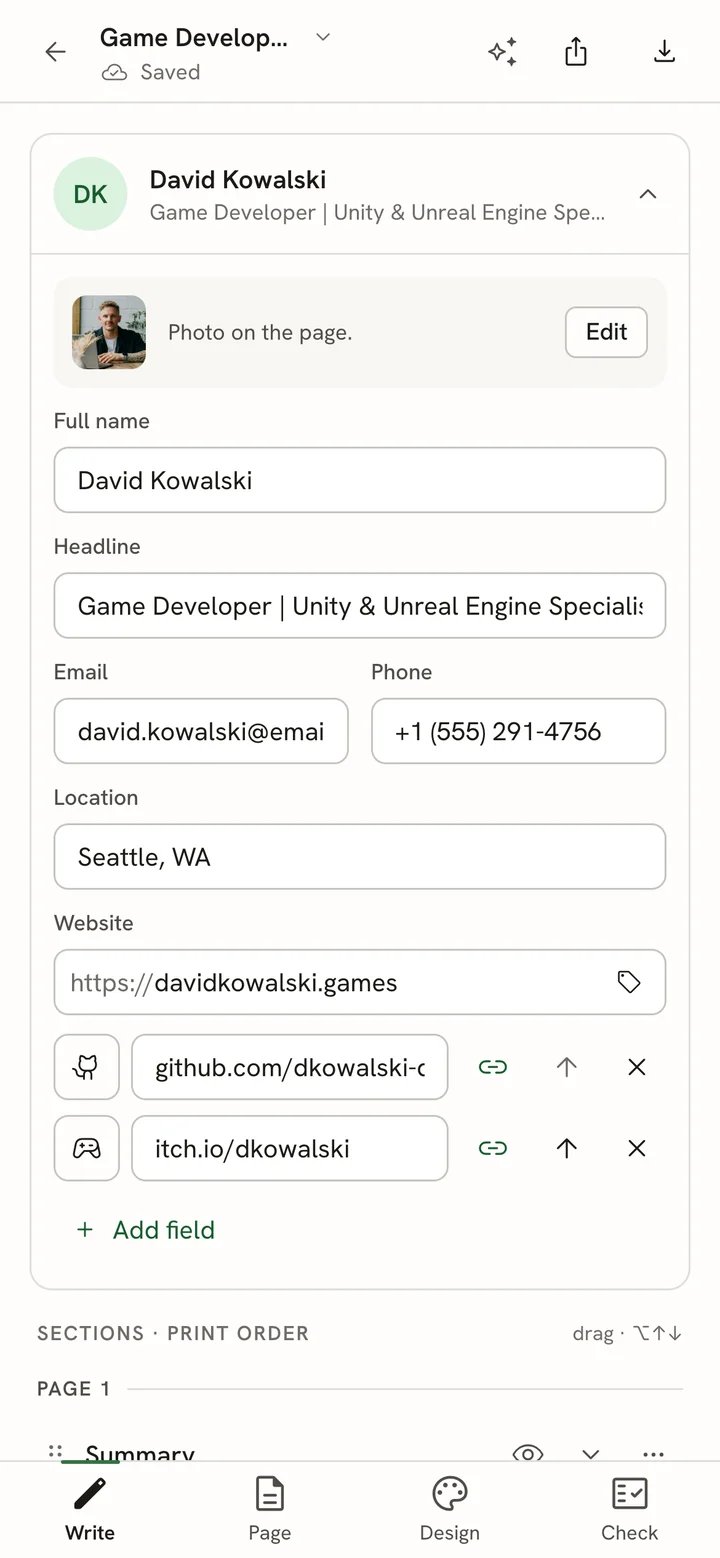
The Write view on a phone, with the tab bar at the bottom
The editor bar on a phone
The bar at the top keeps the back arrow, the document name (which opens the document menu) and the save status. On the right are three icons:- Assistant opens the AI assistant full screen.
- Share opens the Share sheet.
- Download PDF downloads the PDF straight away. For other formats, open Share and use its Download tab.
Edit an entry from the page
1
Open the Page tab
Scroll to the part of the resume you want to change.
2
Tap the line
The block is outlined, and an Edit entry button appears. The Editing tag is hidden on phones to keep nearby
headings readable.
3
Tap Edit entry
The editor switches to Write and opens that entry.
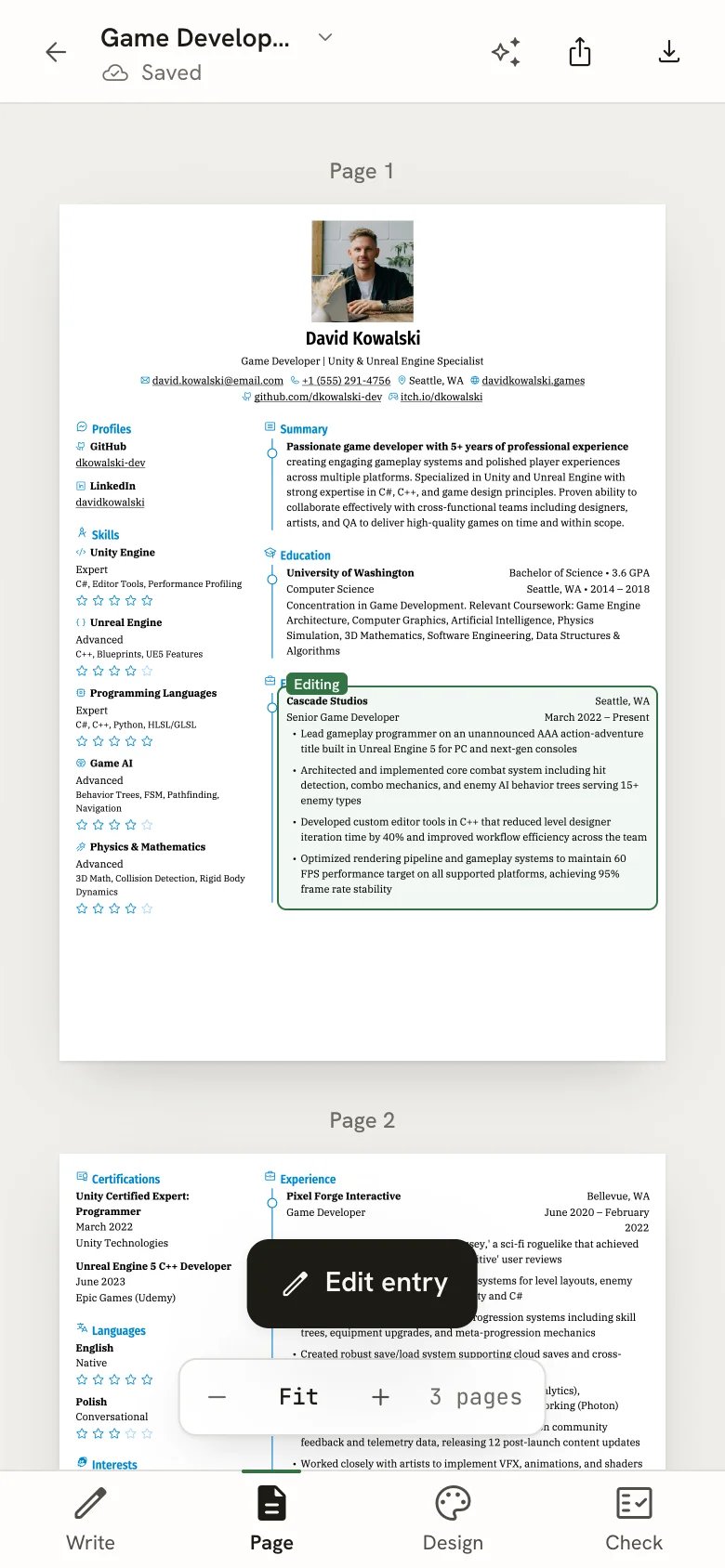
Tapping an entry on the page offers Edit entry
Entries open full screen
When you open an entry in Write, it slides in and fills the screen, with larger fields that are easier to tap. The top of the screen names the section, for example Experience. Tap it to go back to the list. The bin icon (Delete entry) deletes the entry, and a message offers Undo.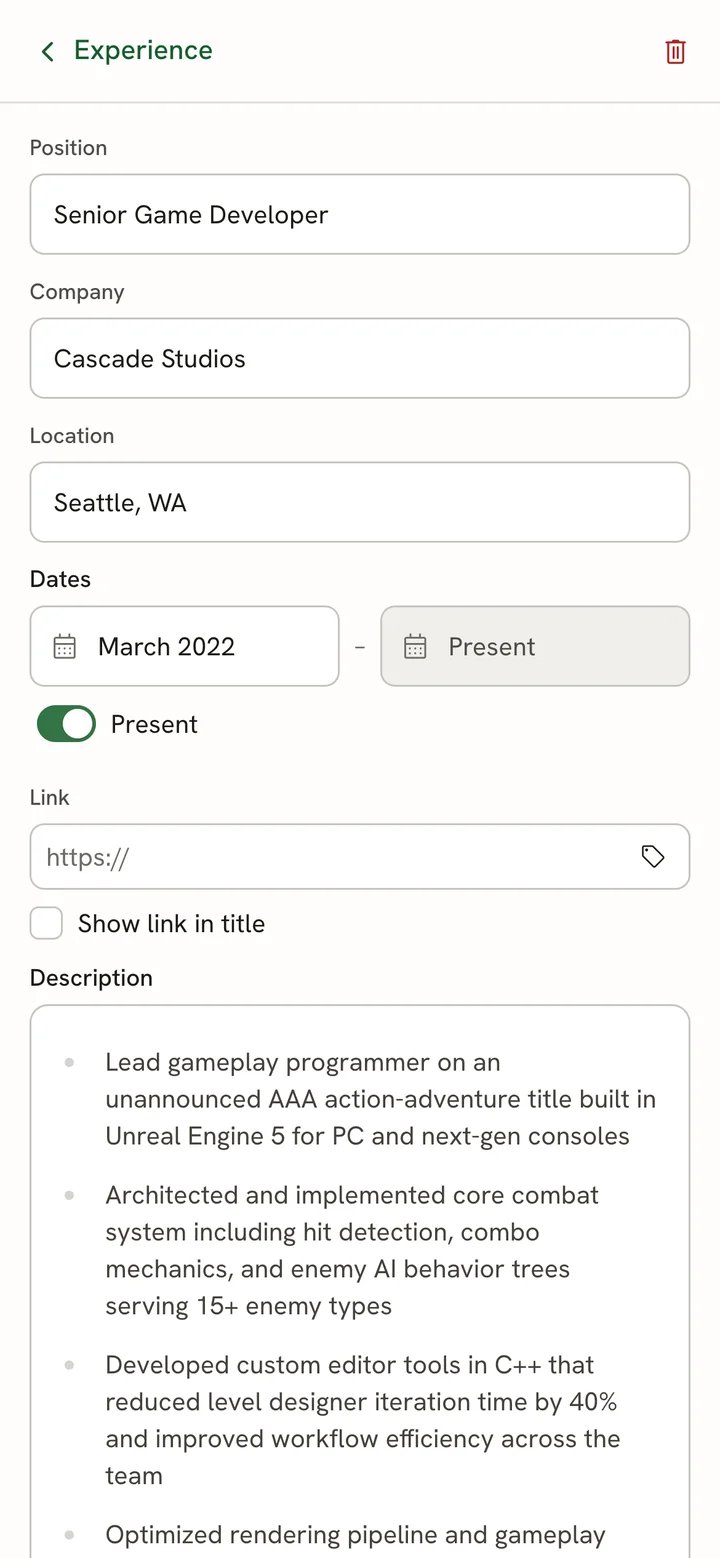
An experience entry open full screen
Change the design
The Design tab keeps the page visible in the top half of the screen, so you can see each change as you make it. The settings sit in a sheet with four tabs: Template, Type, Color and Page. The Advanced settings are at the bottom of the Page tab. To see more of the settings, tap the handle at the top of the sheet (Raise the design sheet). Tap it again to lower it.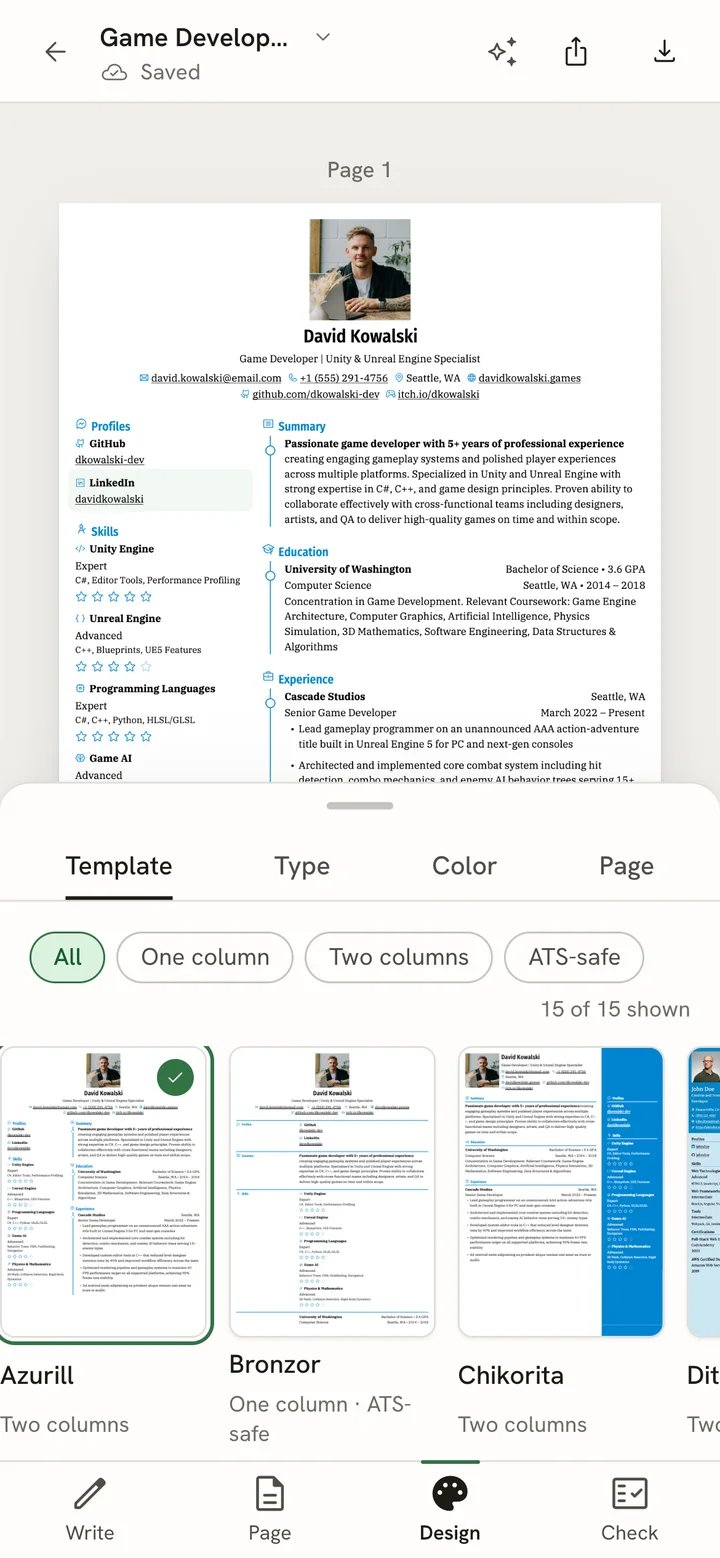
The design sheet over the lower half of the page
Check your resume
The Check tab lists the issues found in your resume. Select Show on page on an issue to jump to the Page tab: a bar at the top reads, for example, “Issue 1 of 3” with Previous issue and Next issue buttons, and a card at the bottom explains the issue and offers a fix. See Checking your resume.On a tablet
On a tablet, the page fills the screen and the panel opens as a drawer over it. This layout applies to screens from 640 to 1023 pixels wide, which covers most tablets held upright. A tablet held sideways that is 1024 pixels or wider gets the same layout as a computer. You switch modes with Write, Design and Check in the editor bar, as on a computer.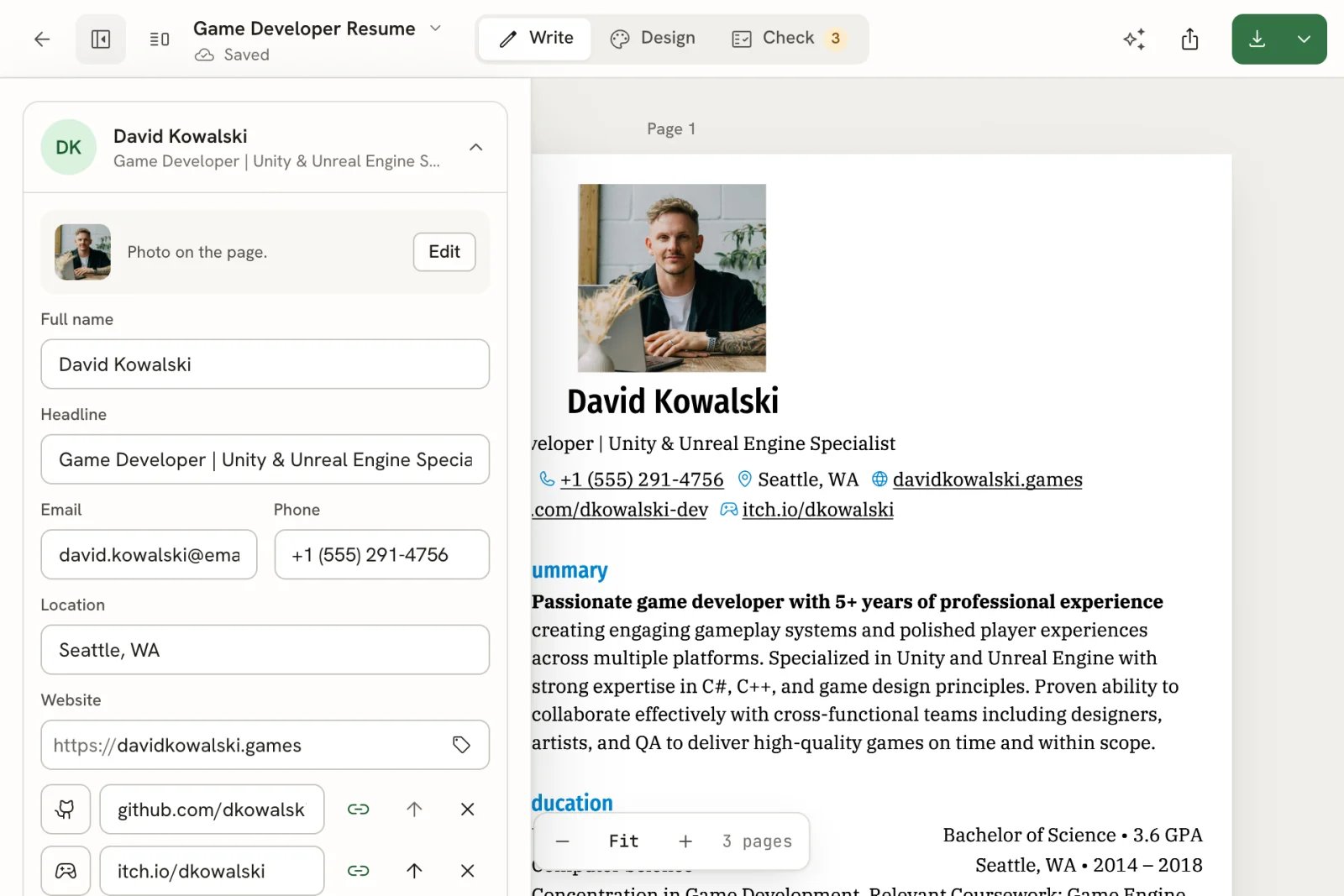
The panel drawer open over the page on a tablet
- Show or hide the panel. Select the panel button next to the back arrow (Show panel / Hide panel).
- Tap a line on the page to open the drawer on that entry. Tap an empty part of the page to close the drawer again; your selection stays.
- Keep the panel beside the page. Held sideways (landscape), a second button appears next to the panel button: Keep the panel beside the page. Select it to pin the panel next to the page instead of over it. Select it again to go back to the drawer.
- The assistant opens as a drawer too. Download PDF shows only its icon, and History is in the Share sheet’s History tab.
Install Reactive Resume as an app
You can add Reactive Resume to your home screen so it opens in a window of its own, without the browser’s address bar.- iPhone and iPad (Safari): open Reactive Resume, select the Share button in Safari, then Add to Home Screen.
- Android (Chrome): open Reactive Resume, open Chrome’s menu, then select Add to Home screen or Install app.
- Computer (Chrome or Edge): select the install icon at the right of the address bar, then Install.
Native iPhone app
The native app uses the same Write, Page, Design and Check modes. Its controls differ from the mobile website screenshots above:- Recover unsynced work. Documents shows Unsynced on this device when local edits have not reached the server. Open the document there to continue, including after restarting without a connection. These edits belong to the signed-in account; sign-out warns before removing unsynced work.
- Share a PDF. Open Share, review File name, then choose Share PDF. File format offers other exports. Link controls public-link sharing, and History keeps saved versions separate.
- Save a job quickly. Enter Company, Role / title and Stage, then select Save job. Open More details for optional fields. Application and follow-up dates use the native date picker; Clear date removes an optional follow-up date.
- Keep unfinished forms. Dismissing an edited job or interview form asks whether to Discard or Keep editing. Save and Cancel remain at the bottom. While a save runs, wait for its result before leaving.
- Choose the next task. Application details offer a task such as Prepare application, Prepare for interview, or Draft a follow-up. Stage progress is informational; select Change stage to edit it.
- Switch Knowledge views. Facts, Stories and Preferences appear together. Workspace tabs reveal the selected destination and provide arrows when the full strip does not fit.
- Refresh saved information. Pull down in Documents, Applications (including Board, Calendar and Insights), Career or account settings. In Board, pull inside a stage column. Check also supports pulling down to rerun its local checks.
- Choose any timezone. Open Settings → Preferences → Timezone, then search by region or city. Show more reveals another batch of timezones. Interview forms offer the same searchable list and can keep a separate timezone for an interview.
- Return from document options. Rename, duplicate, notes and details offer Back to return to the document menu. Swipe the sheet down to dismiss it.
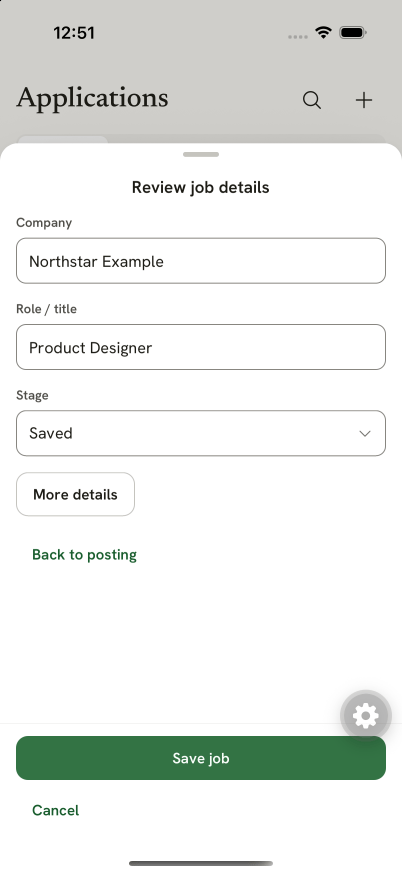
Native iPhone job capture keeps optional details collapsed and Save job at the bottom. This example is fictional.
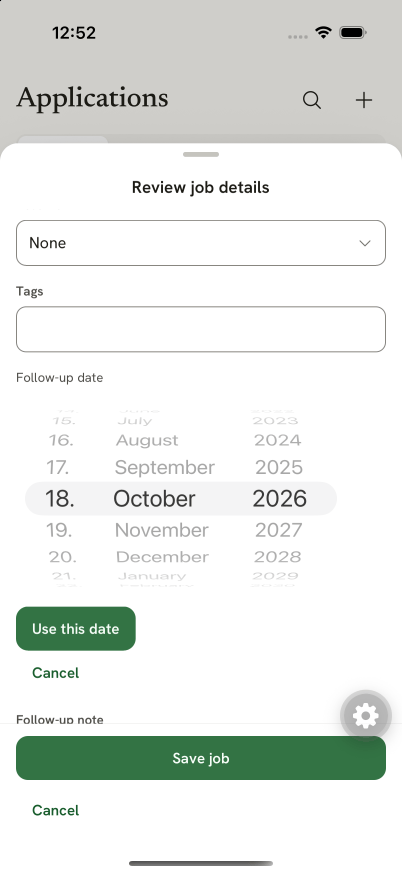
Choose an optional follow-up date with the native picker, then select Use this date. Clear date removes it.
Related guides
- Getting to know the resume editor: the editor on a computer, saving and locking.
- Editing entries: adding, moving and deleting entries.
- Keyboard shortcuts: faster editing with a keyboard.